 All Partner Portal information
Start with Customer setup
Sign in at /admin/login with the portal administrator account provided during deployment. Open /admin/setup to check installation status and remaining configuration. This account is separate from member Microsoft sign-in.
Protect administrator credentials and verify access before removing deployment bootstrap password settings. Entra member registration and workspace assignment are separate from the automatic SQL installation.
Publish your organisation’s brand
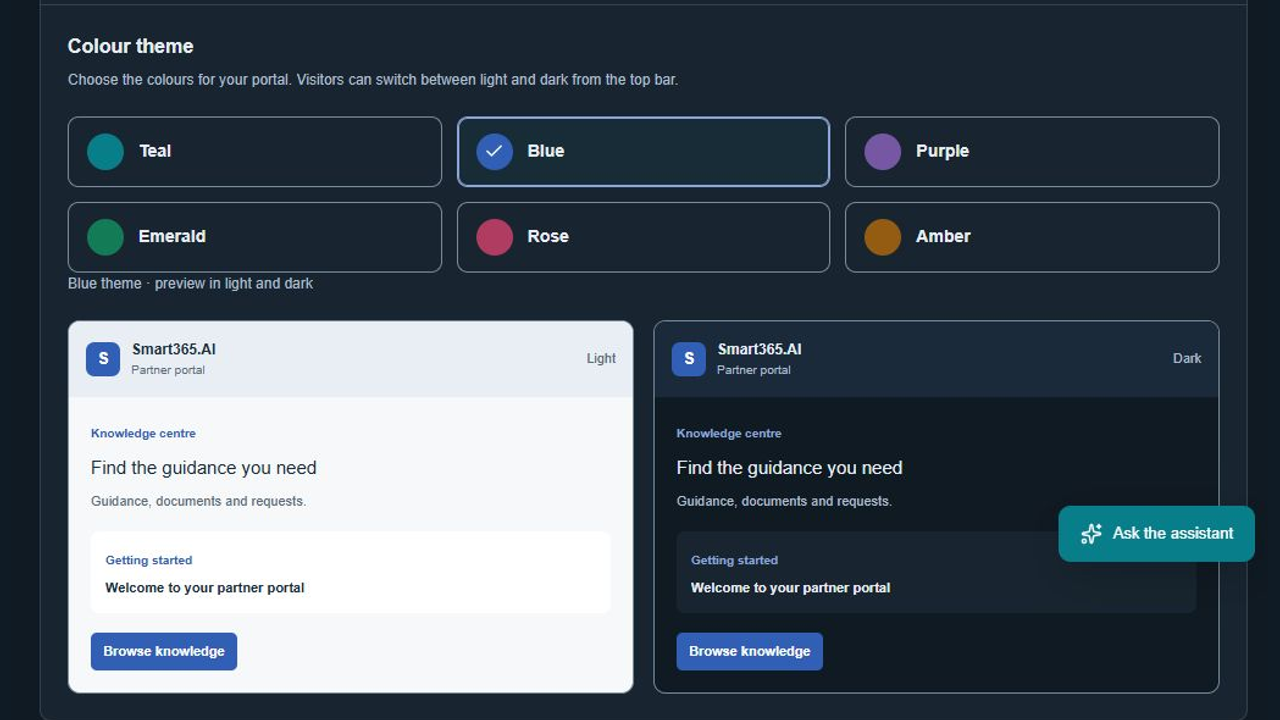
Each visitor keeps their own light/dark choice in the top bar. The administrator selects the shared colour theme.
- Open Branding and choose Teal, Blue, Purple, Emerald, Rose or Amber. Review both appearance previews.
- Edit the organisation name, approved logo and contact details. Use Homepage and Navigation & footer for public content and links.
- Save the draft and select Preview saved draft. Check desktop/mobile and light/dark appearance.
- Publish the saved draft when ready. Restore previous restores the previous published site configuration, including branding, homepage, navigation and theme.
Publish useful knowledge
- Create or edit guidance in Knowledge, choose its intended audience and save it as a draft.
- Review and publish content deliberately. Drafts and unpublished content are excluded from eligible member/public AI sources.
- Check links and source information when guidance changes. Avoid placing private customer information in public articles.
- The structured-text editor does not provide a full collaborative rich-text workflow. Plan ownership and review around the features available.
Assign people to workspaces
Create the partner workspace, then use People & access to grant Microsoft access using the member’s object ID in your customer directory. Assign only the workspace they should use. Sign-in alone does not create membership or grant administration.
Check guest object IDs, disabled membership and the active customer tenant if a member sees an access error. Changes to membership must be evaluated alongside document and knowledge audience settings.
Request and review documents
- Issue a document request in the correct workspace with clear instructions.
- The assigned member submits a PDF, DOCX or TXT file up to 25 MB. The current version enters the processing/review workflow.
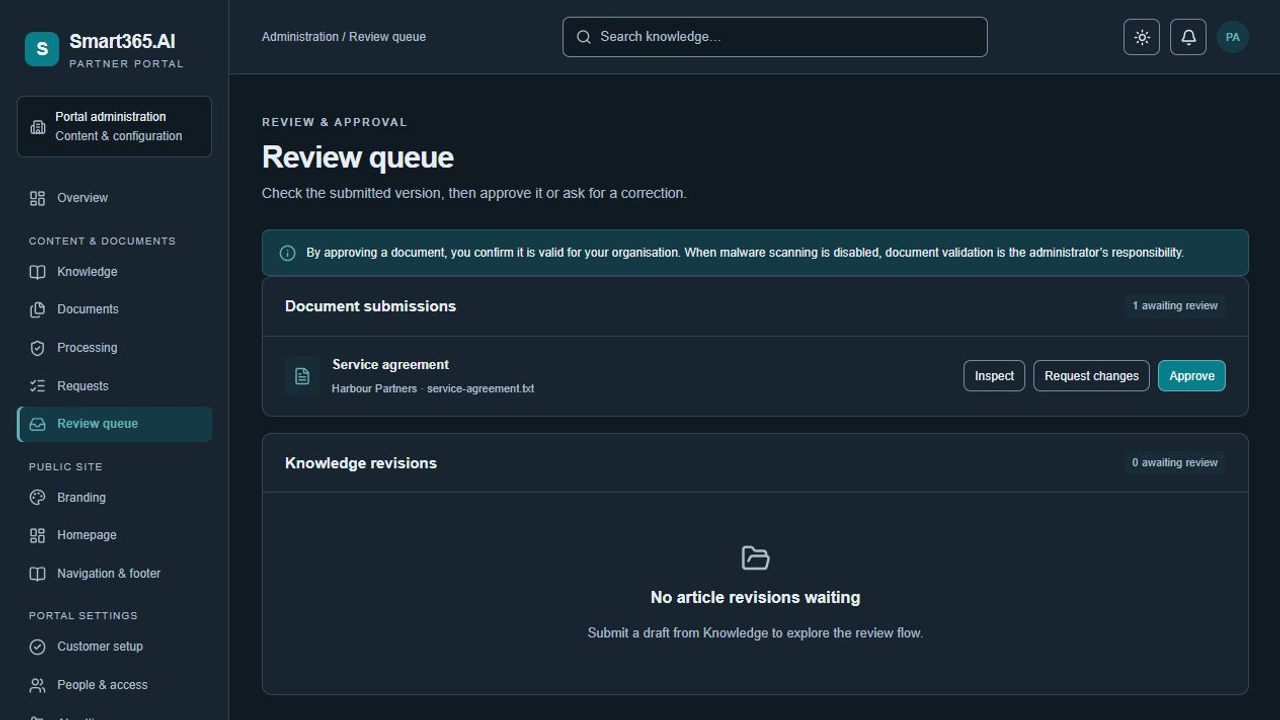
- Check successful extraction and any configured scan result. Administrator approval mode has no malware scanning; the administrator is responsible for validating the original.
- Approve the current submission or request changes with feedback. A correction/resubmission retains version history and earlier originals.
- Verify the approved version and its source links before relying on AI answers. Download originals only for an authorized purpose.
Control AI and voice
Use AI settings to check the configured connection and manage everyday assistance/voice switches. Azure resource administrators manage model deployments, roles, capacity and usage controls.
Answers use permitted published guidance and eligible current approved documents, with links to sources. Check the original source before making a decision. AI can omit information or produce an inaccurate answer.
Voice supports an editable spoken question and answer playback when enabled. It does not provide an uninterrupted speech-to-speech portal conversation. AI source content is sent to the configured Azure service for inference.
Operate and maintain the portal
- Review failed processing, scanner connectivity and Azure service/usage alerts.
- Protect database and document backups separately from application release archives.
- Qualify package upgrades, rollback and schema/identity compatibility in a maintenance window. Offer updates do not silently update installed apps.
- Use a separate restored database and integrity checks before any data cutover. A package rollback does not restore SQL or original documents.
- Sign out to clear only this app’s session and return to the public site. Other Microsoft 365 sessions remain active.