 All Partner Portal information
Sign in to your workspace
Open your organisation’s portal and use Sign in with Microsoft when the administrator has enabled it. Use the account they assigned to your workspace. An existing Microsoft account does not automatically provide portal membership.
If access is missing, contact your portal administrator with your sign-in email and the expected workspace. Do not share passwords. The public knowledge site can remain accessible without sign-in.
Respond to a document request
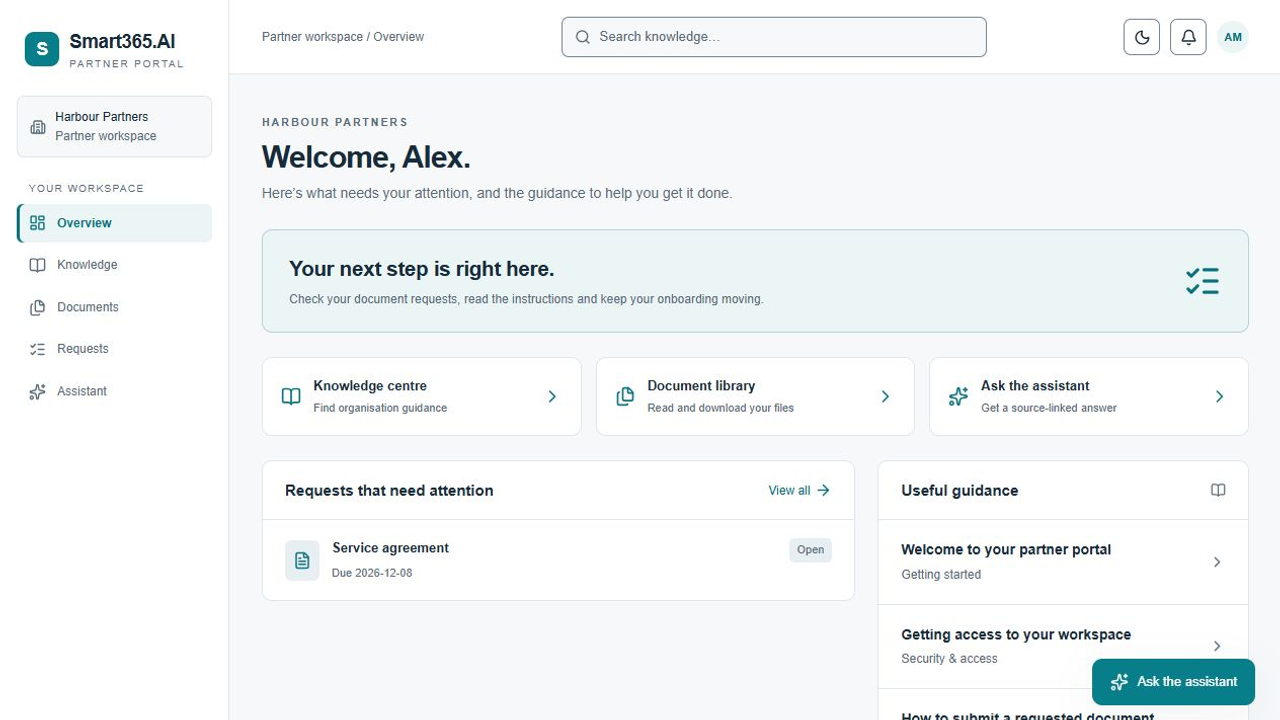
- Open Requests in your assigned workspace and read the instructions.
- Submit the requested PDF, DOCX or TXT file, up to 25 MB. Check that the original is appropriate to share with your organisation.
- Wait for processing and administrator review. A submitted file is not automatically approved.
- If changes are requested, read the feedback and submit a corrected version. Earlier submissions remain in version history.
- Use Documents to view the available records and download originals you are permitted to access.
Ask questions and check the sources
Use the workspace assistant or Ask about this document for an eligible current approved document. Answers reference permitted published knowledge and documents available to you.
Follow the links and check the original before acting on an answer. Drafts, unapproved versions and sources outside your access should not be used as answer context. AI answers can be incomplete or inaccurate.
When voice is enabled, dictate an editable question or listen to an answer. Your browser asks for microphone permission when recording is needed.
Appearance and sign-out
Choose light or dark appearance from the top bar. Your organisation’s administrator controls the published colour theme and branding.
Sign out to end the portal session and return to the public root page. This app-only logout preserves other Microsoft 365 browser sessions.